 Roga Digital
openai-image-mcp
Claude can describe an image, but it can’t draw one. openai-image-mcp gives Claude Code and Claude Desktop two new tools that generate and edit images with OpenAI’s Image API, on your own key, from a small server that runs on your computer.
From a prompt to a file on your computer
The dog below came from this server. Here is the path the request took.
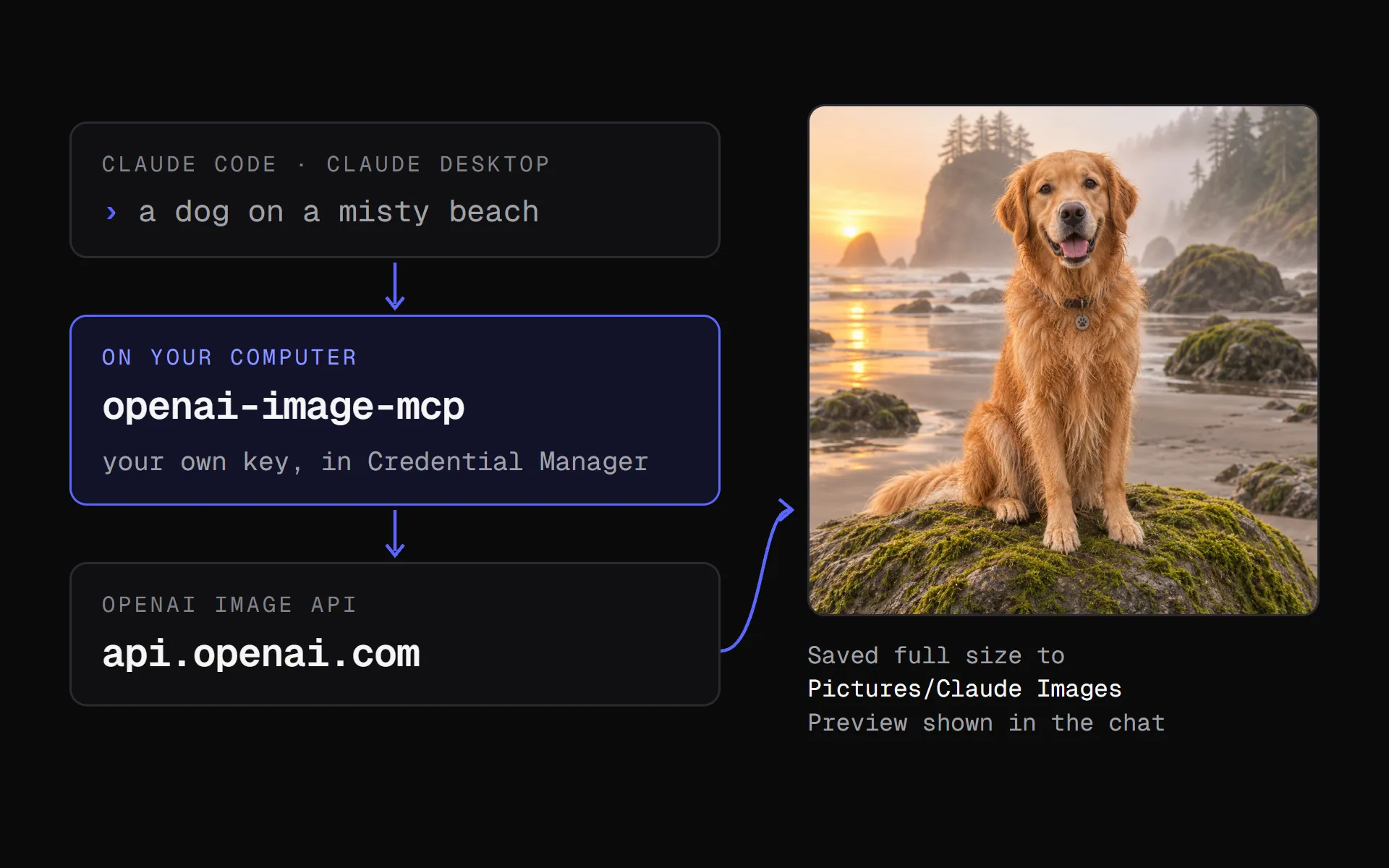
Step 1
You ask Claude
In Claude Code or Claude Desktop, ask for an image in plain words. Claude picks the tool and writes the prompt.
Step 2
The server runs on your computer
Each Claude app starts the server when it needs it. You never start it yourself, and nothing is hosted online.
Step 3
OpenAI draws it
The server reads your key and sends the request to api.openai.com, the only address it talks to.
Step 4
The image comes back two ways
The full-size file is saved to Pictures/Claude Images. A smaller preview and the saved path appear in the chat.
Two tools
Claude chooses between them on its own: a new picture is a generate, and “make the dog black” on one it already made is an edit. Both take the same options, so you can ask for a size, a transparent background, or a quick low-quality draft in plain words.
generate_imageCreates one to four images from a text prompt.
edit_imageEdits images on your computer, or combines several as references, with an optional mask. Ask for a change and Claude edits the latest version, saved as -v2, -v3, and so on, so an earlier one is always there to go back to.
- size
auto, 1024x1024, 1536x1024Square, landscape, or portrait.
- quality
low to maxLow is fast and cheap for drafts.
- background
auto, transparent, opaqueTransparent needs PNG or WebP.
- output_format
png, jpeg, webpThe format of the saved file.
- n
1 to 4How many images. Each one is billed.
Local by design
An API key that can spend money deserves care. The server keeps it out of config files and sends it nowhere but OpenAI.
- Your key lives in Windows Credential Manager, never in a config file. A changed key takes effect on the next image.
- The server talks only to api.openai.com. There is no account, no hosted service, and no telemetry.
- Saved images are named by date, time, and prompt, and an existing file is never overwritten.
- The tests never call OpenAI or read your stored key.
What it costs
It runs on an OpenAI API key, not a ChatGPT subscription, and each image is billed to that account: from a few cents to tens of cents, depending on size and quality. A detailed image can take up to two minutes, so ask for low quality while you’re still deciding what you want.
OpenAI asks for Organization Verification before its image models will answer. A project-scoped key with a monthly spending limit is a good fit, so a runaway session can never cost more than you planned.
Install it
These steps are for Windows, and they need uv (opens in a new tab). Clone the repository, install it, and store your key at a hidden prompt:
git clone https://github.com/rogadev/openai-image-mcp
cd openai-image-mcp
uv sync
uv run store_key.py
Then register it with Claude Code, for every project, using the full path to your clone:
claude mcp add --scope user --transport stdio openai-images -- "<clone>\.venv\Scripts\openai-image-mcp.exe"For Claude Desktop, add the same path under mcpServers in its config file, then quit it from the system tray and reopen it. The README (opens in a new tab) has the exact entry, and how to check that both apps can see the server.
Want tooling like this for your team?